GWS Tutorial

A lot of people (like, more than five) have expressed interest in seeing the process I go through to create a GWS strip. So for strip #250, I took photos & screen caps for just about every step so you guys could see what goes into each strip.

I should forewarn that this is the messiest tutorial I have ever made! The photos came out all grainy, so the first half of this tutorial will be shown in the style of a noir film. And... ACTION!

STEP 1: Concept

Okay, step one of this strip was actually brushing my teeth naked, so we're gonna skip that step and cut right to the rough sketches.

I have a notebook for each project I work on (one for GWS, one for Bat Boy, etc.). Once upon a time I thought it would be a good idea to just start a strip without sketching it out first, but over time I realized that a rough sketch is way helpful. So much so that I actually do two roughs: the dialogue...

... and the art...

Often I'll cut out a good 1/3 of the dialogue - less is more, especially when you're restrained to 3-5 panels. Often I'll also write the first three panels without planning the punchline. That's when I call Kris over, crack open a cider, and/or call someone who's much funnier than me.

STEP 2: Putting it on Paper

Next I prep my 11x15" sheet of watercolor paper by penciling the guides.

Because I can be more flexible with the art than I can with the dialogue, I place the words & balloons first, sometimes with a few rough placements for the characters.

Next I jump straight to inking the letters & guides with an 05 Micron (the newer the pen, the better!). Watch out, or the Micron will bite your finger and you'll have to wear a Band-Aid.

I use an 08 for the balloons and the bold text, and a 1 (made by Sakura, looks just like the Microns) for the guides. My clear acrylic ruler rules. (That's a lame joke, not a typo.)

I do all my pencils with a Bic mechanical pencil, 0.7mm lead. That poop-looking thing is actually a kneaded rubber eraser.

Next, time for more inks!

I go back in with my pen to thicken up some lines, mostly on close-ups and hair. I use a terribly hard-to-find Pentel fountain pen, which gives a great range of thick & thin lines.

Finally I fill in all the blacks and anything else I forgot (like Hazel's arm on panel #3).

I mess up a lot, so I usually have to do a few patch-ups. I've used plenty of other white cover-up brands, but good ol' White-Out (or, y'know, "Liquid Paper") dries fastest and isn't a bitch to clean up.

STEP 3: Computer!

I scan all my work on a crappy $60 Canon scanner which is replaced every 2 years. It has a letter-sized bed, so I have to scan each end of the page and merge them together in Photoshop because I can't afford a larger scanner. You can donate to GWS by clicking here.

All my art is scanned as 600dpi Bitmaps, which means we're getting nothing but black and white pixels here. This keeps the art sharp for the printer (in other words, this decision has nothing to do with web presentation, and maybe I should put out a freaking book one of these days).

Once I merge the panels together, I change the mode to greyscale (Image>Mode>Greyscale), and set up my layers palette for the grey tones. I always have two folders, "bg" for background, and "greys" for, um, greys. Under the greys folder I have 25%, 50%, and 75% layers, plus an extra 25%+ for the shading.

Before I start placing greys, I fix all the inks that I didn't bother to fix on the original art. I never use guides for my lettering, so that's usually the first to get fixed up.

Once that's done, I place the greys - Jamie's hair is always 75%, Hazel's is 50%, etc.

Next I add another layer called "whites" and brush white over all the ink lines that I want to turn grey later for the backgrounds. I'll change the "whites" layer opacity to 50% later so that I'm only letting 50% of the black show through.

Next I fill the background base layer with black...

And change the opacity of both the background base layer and the whites to get some greys working in the bg.

On this piece I had to delete a few areas for the window.

Now for the patented cop-out background: I drag the "base" layer down to the little icon next to the trash bin on the layes palette. This copies the base layer, making the bg a little darker.

I marquee each individual panel separately and use a mouse (this part won't work with your tablet pen!) to erase one big round circle out of the new base layer, leaving a circle of lighter grey in the center.

Finally I'll place the 25%+ grey shading for more depth, flatten the image, crop to 800px wide and 72dpi, and...

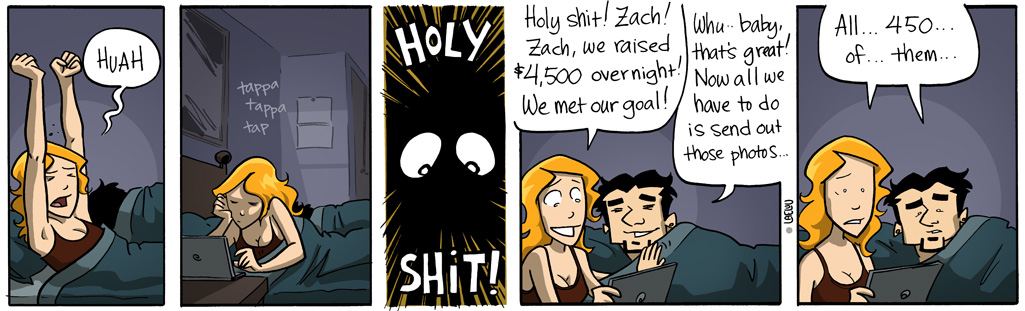
Voila! GWS250.jpg is finished. I always check over the strip after I upload it to my server, and often go back to make the dialogue more clear or change a facial expression or two. But the hard part is done, and this usually takes a little over 2 hours.

Now get yer ass back to the home page and appreciate all the work I do for you, gosh darnit!